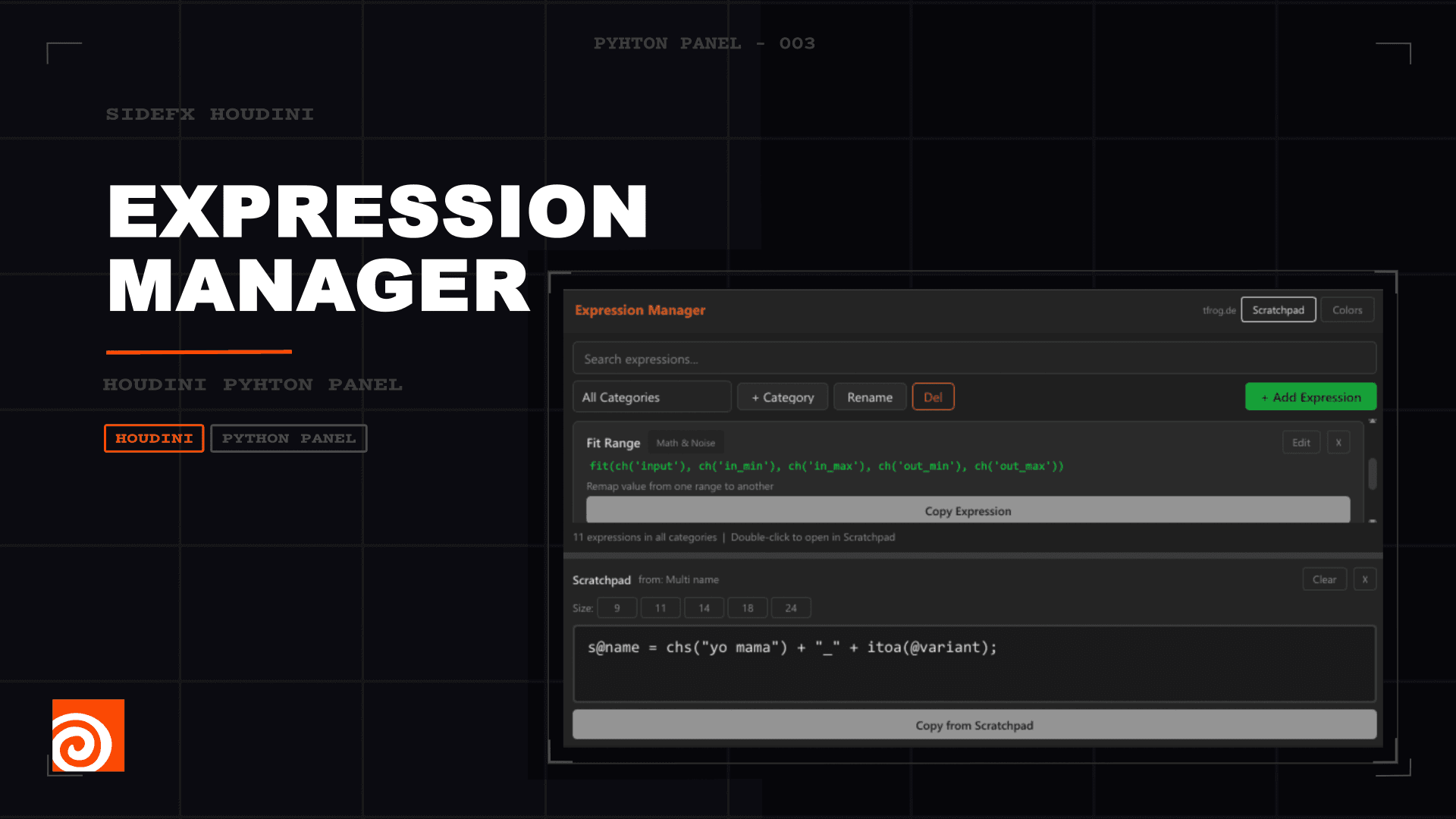
This Tool stores and organizes your custom code snippets within Houdini, allowing you to build and maintain a personalized expression library. It also allows you to quickly browse your collection, and instantly copy any expression with a single click to significantly speed up your workflow.
Expression Manager
Explore my full suite of Python panels for an enhanced workflow. All of these tools share a globally linked color UI, ensuring that your custom interface preferences and accent colors are instantly synced across every panel in the collection.
Installation Guide
1 / 8
Documentation
Expression Manager — Documentation
A Houdini Python Panel for organizing, browsing, and quickly copying HScript expressions and VEX snippets. Part of the tfrog toolset for Houdini 21.
Installation
- Open Houdini
- In Houdini, go to Windows → Python Panel Editor
- Click the New Interface button to create a new interface
- Name it
Expression_Managerand Label itExpression Manager - Activate Include in Pane Tab Menu
- Paste the entire script into the Script tab
- Click Apply / Accept
- Open the panel via New Pane Tab → Python Panel → Expression Manager
Tip: Dock the panel alongside your Parameter Editor or Network Editor for quick access while working.
Interface Overview
The Expression Manager is divided into four main areas:
- Header Bar — Title, tfrog.de label, Scratchpad mode menu, Import/Export buttons, and Settings button
- Library View — Search bar, category controls, context filter, and expression cards
- Status Bar — Shows the current expression count, scope, and active context filter
- Scratchpad — An editable workspace for modifying expressions before copying them
Managing Categories
Creating a Category
Click the Categories button in the toolbar row and select New Category from the dropdown menu. Enter a name in the dialog that appears. The new category is immediately available in the dropdown.
Switching Categories
Use the dropdown on the left side of the toolbar row. Select All Categories to see every expression across all categories, or pick a specific category to filter.
Renaming a Category
Select the category you want to rename from the dropdown, then click the Categories button and choose Rename. Enter the new name in the dialog.
Sorting Categories
Click the Categories button and select Sort Categories. A dialog opens where you can reorder categories by dragging them or using the arrow buttons (▲▲ top, ▲ up, ▼ down, ▼▼ bottom). Click Apply Order to save the new arrangement.
Deleting a Category
Select the category from the dropdown and click the red Del button. A confirmation dialog will appear. Deleting a category also removes all expressions inside it.
Managing Expressions
Adding an Expression
- Click + Add Expression (green button on the right)
- Fill in the fields:
- Name — A short, descriptive title (e.g. "Noise Displace") - Expression — The HScript expression or VEX snippet (e.g. sin($FF * ch('freq') * 360) * ch('amp')) - Description (optional) — A brief explanation of what the expression does - Context — Select where the expression applies (see Context Tags below)
- Click Save
If you're viewing "All Categories", you'll be asked which category to add the expression to.
Editing an Expression
Click the Edit button on any expression card. The edit dialog opens with the current name, expression, description, and context pre-filled. A Category dropdown is also available — you can use it to move the expression to a different category. Make your changes and click Save.
Deleting an Expression
Click the X button on any expression card. A confirmation dialog will appear before the expression is removed.
Copying an Expression
Click the Copy Expression button on any card. The expression text is copied to your clipboard, and the button briefly shows "Copied!" as confirmation. You can then paste it directly into any Houdini parameter field.
Reordering Expressions (Drag & Drop)
You can reorder expressions within a category by dragging and dropping expression cards. Click and hold on a card (not on a button), then drag it to a new position. A colored indicator line shows where the card will be inserted. The panel auto-scrolls when you drag near the top or bottom edge of the list.
In All Categories view, dragging reorders the expression within its own category based on the visual position. Expressions cannot be moved across categories via drag and drop — use the Edit dialog's category dropdown for that.
Context Tags
Each expression can be tagged with one or more context labels to indicate where it's used:
| Context | Description |
|---|---|
| Global | General-purpose expression — shown in all context filters (default) |
| Point | Runs in a Point context (e.g. Point Wrangle) |
| Primitive | Runs in a Primitive context (e.g. Primitive Wrangle) |
| Vertex | Runs in a Vertex context |
| Detail | Runs in a Detail context |
When adding or editing an expression, context checkboxes are shown. Global is the default. Checking a specific context (Point, Primitive, etc.) automatically unchecks Global, and vice versa. Multiple specific contexts can be selected at the same time. The Global checkbox is disabled while any specific context is active — re-enable it by unchecking all specific contexts.
Context Filter
Use the context filter dropdown next to the category selector to filter the displayed expressions:
- Global — Shows all expressions (no filtering)
- Point / Primitive / Vertex / Detail — Shows only expressions tagged with that specific context
Context tags appear as small badges on each expression card. The active context filter is also reflected in the Status Bar at the bottom of the panel.
Search
Type in the search bar at the top to filter expressions in real time. The search uses Houdini-style fuzzy matching against the expression name: each character group in your query is matched against the beginning of a word in the name. Order of groups does not matter — for example, "atim" matches "Attribute Import" because "at" matches Attribute and "im" matches Import. As a fallback, a simple case-insensitive substring match is also applied. Clear the search field to show all expressions again.
Note: The search only matches against expression names. Description and expression text are not searched.
Import & Export
The Expression Manager supports sharing expression libraries between users or machines via JSON files.
Exporting Expressions
- Click the Export button (arrow-up icon) in the header bar
- In the Export dialog, check or uncheck the categories you want to include. Use Select All / Select None for quick toggling.
- Click Preview next to any category to see a read-only list of its expressions before exporting
- Click Export Selected and choose a save location. The default filename is
tfrog_expressions.json
Importing Expressions
- Click the Import button (arrow-down icon) in the header bar
- Select a
.jsonfile that was previously exported - In the Import dialog, check which categories to import. Each category shows its expression count and a Preview button.
- Use the Rename To field to change a category's name during import (useful to avoid conflicts with existing categories)
- Click Import Selected
During import, if a category with the same name already exists, its expressions are merged — only expressions with new names are added. Duplicates (matched by name) are skipped.
Scratchpad
The Scratchpad is a dedicated editing workspace where you can modify a copy of an expression before copying it. The original expression in the library is never changed.
Scratchpad Modes
Click the Scratchpad button in the header bar to open a dropdown menu with three modes. The selected mode determines what happens when you double-click an expression card:
| Mode | Behavior |
|---|---|
| Inline | Opens the expression in the inline Scratchpad at the bottom of the panel (default) |
| Pop-out | Opens the expression in a separate, freely resizable floating window |
| Both | Opens the expression in both the inline Scratchpad and a Pop-out window simultaneously, with the editors kept in sync |
The selected mode is persistent — it's saved to disk and restored the next time the panel is opened.
Opening the Scratchpad
Double-click any expression card to load it into the Scratchpad according to the current mode. The Scratchpad shows the expression name in its header (e.g. "from: Noise Displace"), and you can edit the text freely without affecting the original.
Inline Scratchpad
The inline Scratchpad appears at the bottom of the panel and contains:
- Header row — The label "Scratchpad", the source expression name, and Clear / Close (X) buttons
- Size buttons — Quick font size presets: 9, 11, 14, 18, 24
- Editor — A monospace text editor where you can freely modify the expression
- Copy from Scratchpad button — Copies the current editor content to your clipboard
Pop-out Window
The Pop-out is a separate floating window that mirrors the Scratchpad editor. It contains:
- Size buttons — Same font size presets (9, 11, 14, 18, 24)
- 📌 Pin button — Toggle "Always on top" so the window stays in front of Houdini while you work
- Editor — A larger, freely resizable monospace editor
- Copy from Scratchpad button — Copies the current editor content to your clipboard
In Both mode, the inline editor and the pop-out editor are bidirectionally synchronized — typing in one immediately updates the other. Closing the pop-out window does not change the mode setting; double-clicking another expression in Pop-out or Both mode will reopen the window.
Resizing the Inline Scratchpad
The divider between the Library View and the inline Scratchpad is draggable. Hover over the border between them until you see the resize cursor, then drag up or down to adjust the Scratchpad height. The editor area grows and shrinks with the panel — the header stays at the top and the Copy button stays at the bottom.
Font Size
You can change the editor font size in two ways (works in both the inline editor and the pop-out):
- Click one of the Size buttons (9, 11, 14, 18, 24) for preset sizes
- Hold Ctrl and scroll the mouse wheel over the editor for fine-grained control (range: 6pt to 48pt)
Focus Behavior
When you hover your mouse away from the Expression Manager panel and back, keyboard focus is automatically restored to whichever input field last had it — either the search bar or the Scratchpad editor. This means you can select text, hover over another panel to check something, come back, and immediately continue typing without needing to click first.
Closing the Scratchpad
Click the X button in the inline Scratchpad header to hide it. Close the pop-out window via its OS window close button. Closing either does not change the selected mode — the mode is changed only via the Scratchpad menu.
Settings
Click the ⚙ Settings button in the header bar to open the Settings dialog. It contains two sections: UI Scale and Colors.
The dialog uses live preview for both sections:
- Drag the UI Scale slider — the panel rescales in real time so you can see the result immediately
- Pick a color in the swatch grid — changes are previewed in the dialog
Changes are only persisted when you click Save. Clicking Cancel or closing the dialog reverts any UI Scale change back to the saved value.
UI Scale
The UI Scale slider lets you adjust the size of the panel body — search bar, dropdowns, expression cards, buttons, fonts, and spacing all scale together. The header bar (with the title and toolbar buttons) stays at a fixed size to keep the toolbar compact.
- Range: 0.75x to 2.5x in 0.25 steps
- Default: 1.0x
- Tick labels below the slider show every step (0.75x, 1.00x, 1.25x, ... 2.50x)
- A / A labels on either side of the slider indicate "smaller" / "larger"
The UI scale is shared globally — it's stored in expression_manager_settings.json alongside the Scratchpad mode setting.
Colors
The color swatches in the Colors section are shared across all tfrog tools (Expression Manager, Preset Manager, Shelf Manager, and Relink Paths). Changing a color in one tool updates all others when you hover over them.
Available Color Options
| Setting | What it controls |
|---|---|
| Background | Main panel background color |
| Title | Header title text color |
| Accent (Copy, Apply, Run) | Copy Expression buttons, Scratchpad copy button, focus highlights |
| Accent Text | Text color on accent-colored buttons |
| Secondary (Add, Save) | "+ Add Expression" button and similar action buttons |
| Secondary Text | Text color on secondary buttons |
| Success Feedback | "Copied!" feedback flash color |
| Success Text | Text color on the success flash |
| Code / Expression Text | Expression code text color (the monospace text on each card) |
Click any color swatch to open a color picker. Click Reset Colors to Defaults to restore the original color scheme. Click Save to apply your changes.
Colors are stored in tfrog_colors.json inside your Houdini preferences folder under tfrog/.
Default Expressions
The panel ships with five default categories:
- Math & Noise — Sin Wave, Fit Range, Smooth Step, Pingpong, Random Seed
- Paths & Strings — Render Output, Sim Cache Path, Point Count, Detail Attrib Value
- VEX - Point — Noise Displace, Random Cd, Height Gradient, Random pscale, Orient from Normal, Delete Random Points
- VEX - Primitive — Random Cd per Prim, Delete Small Prims, Group by Normal
- VEX - Detail — Bounding Box, Average Position, Min/Max Attribute
These are written to the JSON on first use and can be freely edited or deleted.
Data Storage
All expression data is saved automatically whenever you make changes. The data files are stored in your Houdini user preferences directory:
$HOUDINI_USER_PREF_DIR/tfrog/expression_manager.json           — Your expressions and categories
$HOUDINI_USER_PREF_DIR/tfrog/expression_manager_settings.json  — UI Scale + Scratchpad mode
$HOUDINI_USER_PREF_DIR/tfrog/tfrog_colors.json                 — Shared color settings
Keyboard Shortcuts
| Action | Shortcut |
|---|---|
| Search expressions | Click the search bar and type |
| Clear search | Click the X inside the search bar |
| Zoom Scratchpad text | Ctrl + Mouse Wheel (over the editor) |
| Copy from Scratchpad | Edit text, then click "Copy from Scratchpad" |
Tips
- Build your own library — Add expressions you use frequently, organized by category (e.g. "Animation", "Attributes", "USD", "Procedural").
- Use context tags — Tag VEX snippets with their intended context (Point, Primitive, Detail) so you can quickly filter for what you need.
- Use the Scratchpad for variations — Double-click an expression, tweak it in the Scratchpad for your specific use case, then copy the modified version.
- Pick a Scratchpad mode that fits your workflow — Use Inline when working in a single panel, Pop-out when you want a free-floating editor (great with the 📌 pin enabled), and Both when you want to see the expression docked while editing it in a larger window.
- Tune the UI Scale — Drag the slider in Settings to make the panel comfortable for your monitor. The slider previews live, so you can dial it in before saving.
- Reorder by dragging — Drag expression cards to rearrange them within a category. Use Sort Categories to reorder the categories themselves.
- Move expressions between categories — Use the Edit dialog's category dropdown to reorganize expressions into different categories.
- Share libraries — Export your expression categories to a JSON file and share them with colleagues. They can import and optionally rename the categories to fit their setup.
- Preview before importing — Use the Preview button in the Import/Export dialogs to inspect a category's expressions before committing.
- Consistent colors — Set your preferred color scheme once in any tfrog tool — it applies everywhere.
- Dock it — The Expression Manager works best docked as a side panel next to your Parameter Editor, so you can quickly copy expressions while adjusting node parameters.